Contents
Install
Download the signed installer for your platform from the home page and run it.
- macOS: open the
.dmg, drag Chartstone to Applications. - Windows: run the installer; the app installs into
%LOCALAPPDATA%\Programs\chartstone.
On first run Chartstone creates a per-user app data directory where it keeps your settings, request log, and shared secret. Nothing else touches your system.
First launch
The first time you start Chartstone, you’ll see a Terms & Privacy modal. Read it (it’s short — about 5 numbered points) and click Accept and Continue. You only see this once unless we update the terms. After that, Chartstone opens an embedded NetSuite browser window.
Signing in to NetSuite
The embedded browser starts at NetSuite’s login page
(system.netsuite.com/pages/login.jsp). Sign in the
same way you always do — username and password, SSO, 2FA, SAML,
whatever your org has configured. The session cookies live in
Chartstone’s own sandbox; they never leave your computer.
If your org has multiple accounts (production + sandbox + test drive, etc.), pick the one you want to use first. You can switch later by signing out within the embedded browser and signing back in.
Choosing the account
Once you’re signed in, NetSuite redirects you to your
account host (something like
1234567.app.netsuite.com or
td3016323.app.netsuite.com). At the top of the
window you’ll see a Use this account bar
— click it.
Chartstone reads your account ID, role, company name, and user info from the page. If you click Use this account while signed into a production account, you’ll get a one-time confirmation dialog asking you to acknowledge that any local-server client will be acting against your live data. Cancel if you intended to use a sandbox; click Connect to Production if you meant it.
After confirming, the NetSuite window closes and the control panel shows the connected account. Production accounts get a red PRODUCTION badge so you can’t miss which environment you’re pointed at.
Starting the local server
In the Local HTTP server card, leave Port blank to get a random ephemeral port (or pin a specific one), then click Start server.
The server binds to 127.0.0.1 only — nothing on
your network can reach it. The card shows the active URL once
the server is running.
The shared secret
Every request to the server requires a bearer token. Click Reveal in the secret block to display it, or Copy to clipboard to grab it without revealing.
The secret is generated on first launch and stored encrypted using your OS keychain (Keychain on macOS, Credential Manager on Windows). It survives reinstalls and app relaunches.
Need to invalidate it? Click Rotate — Chartstone generates a new secret and stops the running server so any client still using the old token will need to be updated.
Making your first call
With the server running and the secret in hand, you can call
any endpoint. The simplest is /health:
curl http://127.0.0.1:<port>/health \
  -H "Authorization: Bearer <secret>"
You’ll get back a JSON document with the server’s state, your NetSuite session presence, and the list of enabled endpoints. From there you can ask the questions you actually care about — see the API reference for every endpoint, or the AI Agents page for prompt-based usage with Claude Code, Cursor, and friends.
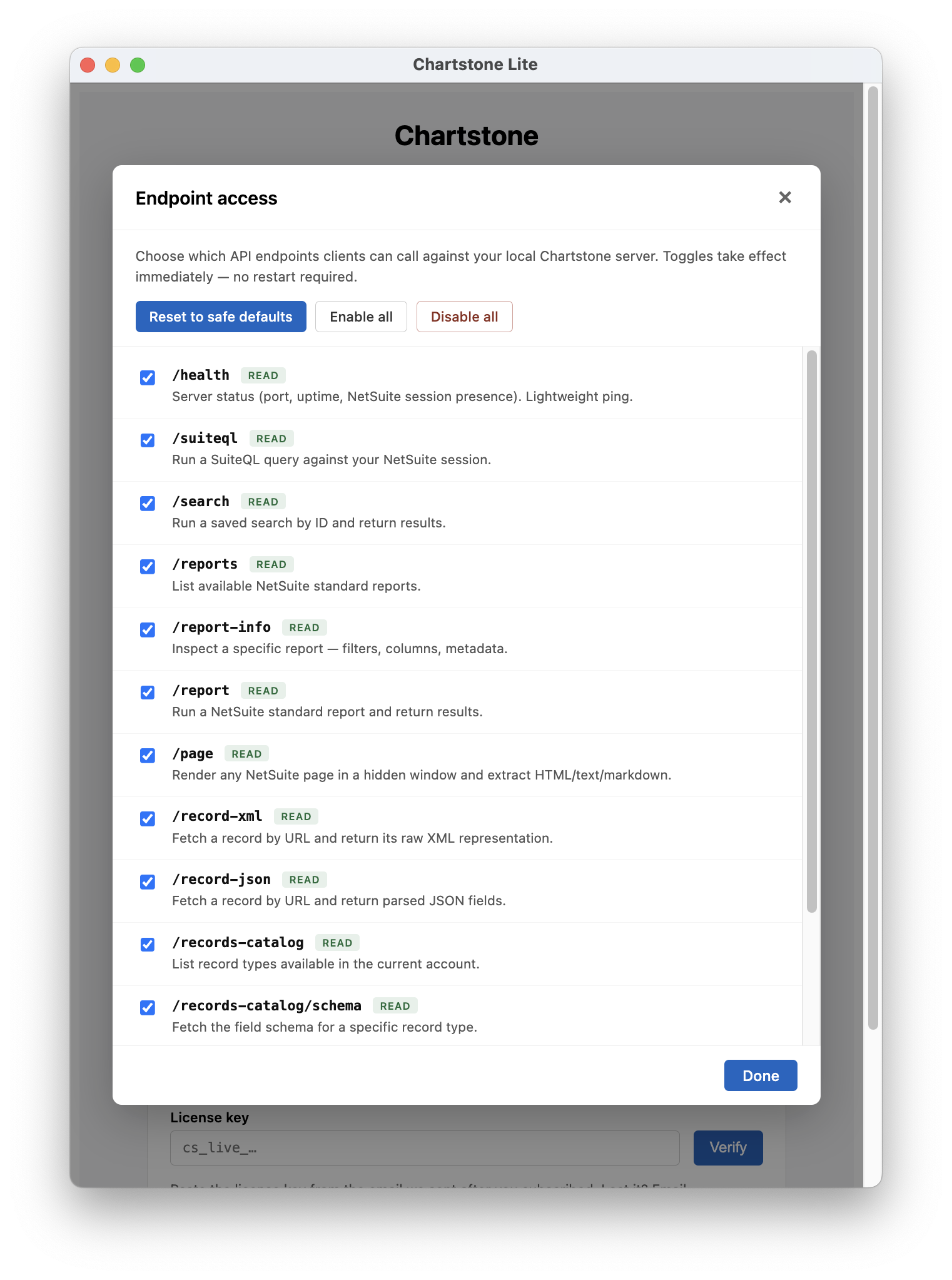
Endpoint access
Chartstone has 15 endpoints, all enabled by default with one
exception: /script (which can execute arbitrary
SuiteScript) is disabled by default. You can change any
endpoint’s enabled state under Local HTTP server
→ Endpoints → Manage.
The modal shows each endpoint with a tier badge:
read (safe — no mutations, no execution),
restlet (calls a deployed RESTlet that may mutate
or execute), and execute (runs ad-hoc code).
Three preset buttons help you keep things consistent:
- Reset to safe defaults — re-enables the read endpoints, disables
/restletand/script. - Enable all — turns everything on.
- Disable all — turns everything off, including
/health. Useful if you’re briefly worried about something but don’t want to stop the server.
Toggles take effect immediately — no restart required.
Preferences
Open Chartstone → Preferences… (Cmd/Ctrl + ,) to tweak two settings:
- Log retention (days) — how long Chartstone keeps daily request-log files on disk. Default 30; older files are pruned at startup.
-
Default script page — the NetSuite page
Chartstone navigates to before running ad-hoc
/scriptcalls. Must be a record-edit-style page that loads the SuiteScript runtime. Default/app/setup/country.nl?id=USrequires theADMI_SETUPCOMPANYpermission; non-Admin users can swap it for any record page their role can reach (e.g./app/common/entity/customer.nl?id=1).
Request log
Click View request log in the Local HTTP server card to see the in-memory ring of recent requests (timestamp, method, path, status, duration). Daily JSONL files on disk preserve every request beyond the in-memory buffer; the modal lets you browse the full window.
Subscription
Chartstone has two tiers:
- Lite (free) — 30 queries / 15 reports / 15 scripts per app launch. Counters reset every relaunch, so light usage stays free indefinitely.
- Pro ($995/year) — no per-launch caps.
To upgrade:
- Visit /subscribe and complete Stripe checkout. We never see your card details — Stripe hosts the payment form.
-
Within a minute, you’ll get an email with your
license key — a long string starting with
cs_live_…. - In Chartstone’s Subscription card, paste the key, click Verify. The control panel switches to Pro immediately.
To cancel or change payment method, click Manage subscription in the same panel (visible once you’re Pro). That opens the Stripe customer portal in your browser. Cancellation stops the next renewal; Pro features remain active until the end of the paid period.
Verified subscriptions are cached locally for 24 hours to avoid hitting the network on every launch, with a 14-day grace period if chartstone.io is unreachable. Lost your key? Email tim@suitestep.com from the address you used at checkout — we’ll re-send.
Troubleshooting
The Use this account bar didn’t appear.
You’re probably still on the login page or on
system.netsuite.com. The bar only injects on
account-host pages (<account>.app.netsuite.com).
Sign in fully, wait for NetSuite to redirect, and the bar
will appear.
I get a 401 Unauthorized on every call.
Either the bearer token is missing/wrong, or the server isn’t running. Reveal the secret in the Local HTTP server card and copy it again — note that rotating the secret stops the server, so you may need to start it again.
I get a 403 Forbidden on a specific endpoint.
The endpoint is disabled. Open Endpoints →
Manage and enable it. /script is
disabled by default; check there first.
I get a 429 with “Query limit reached.”
You’ve hit a Lite-tier per-launch cap. Either restart
Chartstone to reset the counter, subscribe to Pro for
unlimited usage, or use maxRows on
/suiteql to keep individual calls smaller.
/script returns “Insufficient NetSuite permissions.”
The default script page (/app/setup/country.nl?id=US)
requires Administrator permissions. Open
Preferences… and change
Default script page to a record page your
role can reach.
The session expired and now nothing works.
NetSuite’s session timed out. Click Open NetSuite in the control panel, sign back in, click Use this account again. Chartstone resumes immediately.
Something else?
Email tim@suitestep.com. Most replies within a business day.